SMS Opt-In Evidence — ProfitOps
Documentation of the end-user text messaging consent flow, published for review by Twilio and The Campaign Registry. This page is publicly accessible and requires no login.
ProfitOps is a workforce management application owned and operated by Holbrook Asphalt Co LLC, 1545 E. Commerce Dr., St. George, UT 84790. End users are employees and authorized users of Holbrook Asphalt Co LLC.
Program summary
- Program
- ProfitOps operational notifications
- Brand
- ProfitOps (Holbrook Asphalt Co LLC)
- Message types
- Transactional and operational only — project status changes, work order updates, operational alerts, and HR and time-off notifications. No marketing or promotional messages are sent.
- Frequency
- Message frequency varies.
- Rates
- Message and data rates may apply.
- Opt out
- Reply STOP to opt out. Reply HELP for help.
- Consent
- Consent is not a condition of employment, purchase, or use of ProfitOps.
- Data sharing
- Mobile information, opt-in data, and messaging consent are not shared with third parties or affiliates for marketing or promotional purposes.
- Support
- [email protected] · (435) 652-4427
Consent language shown to the end user
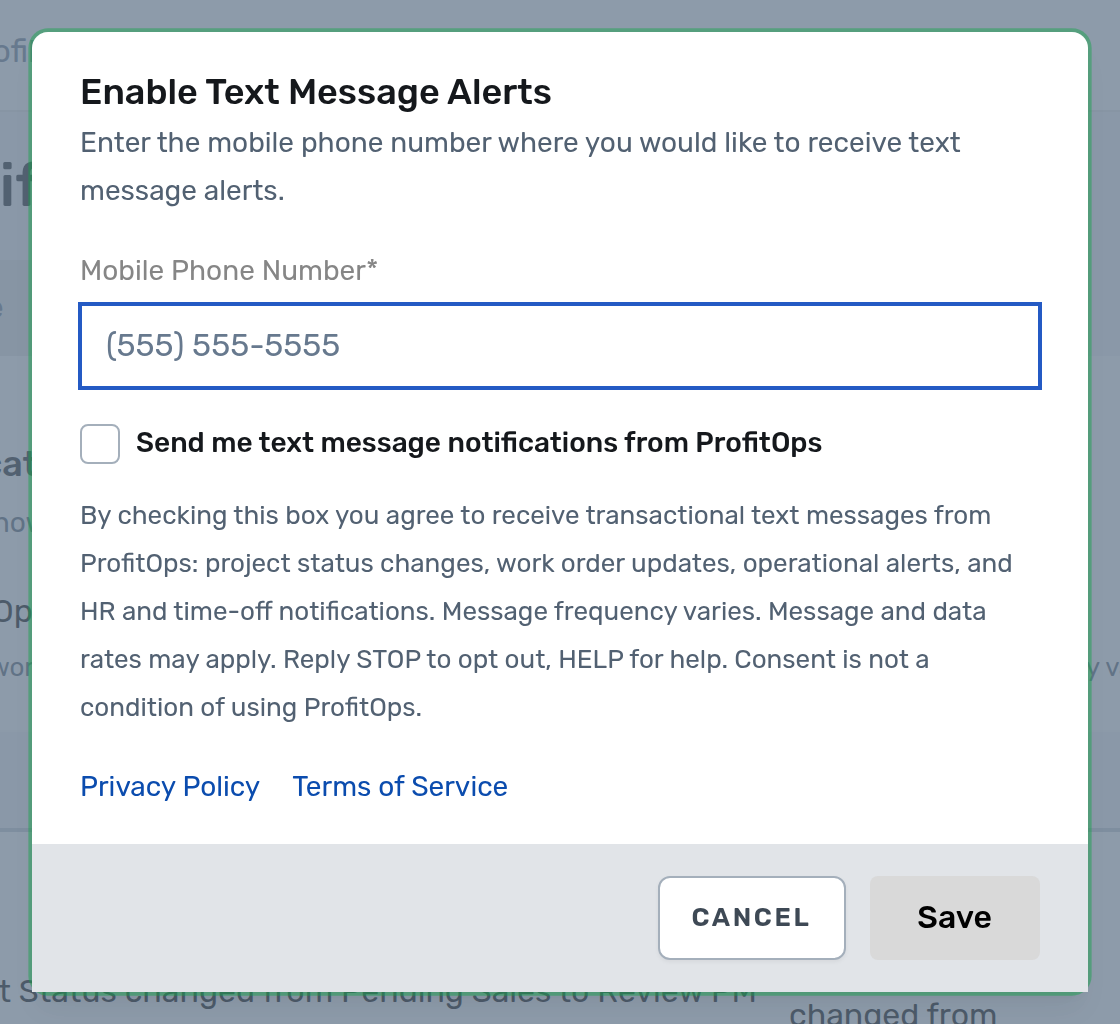
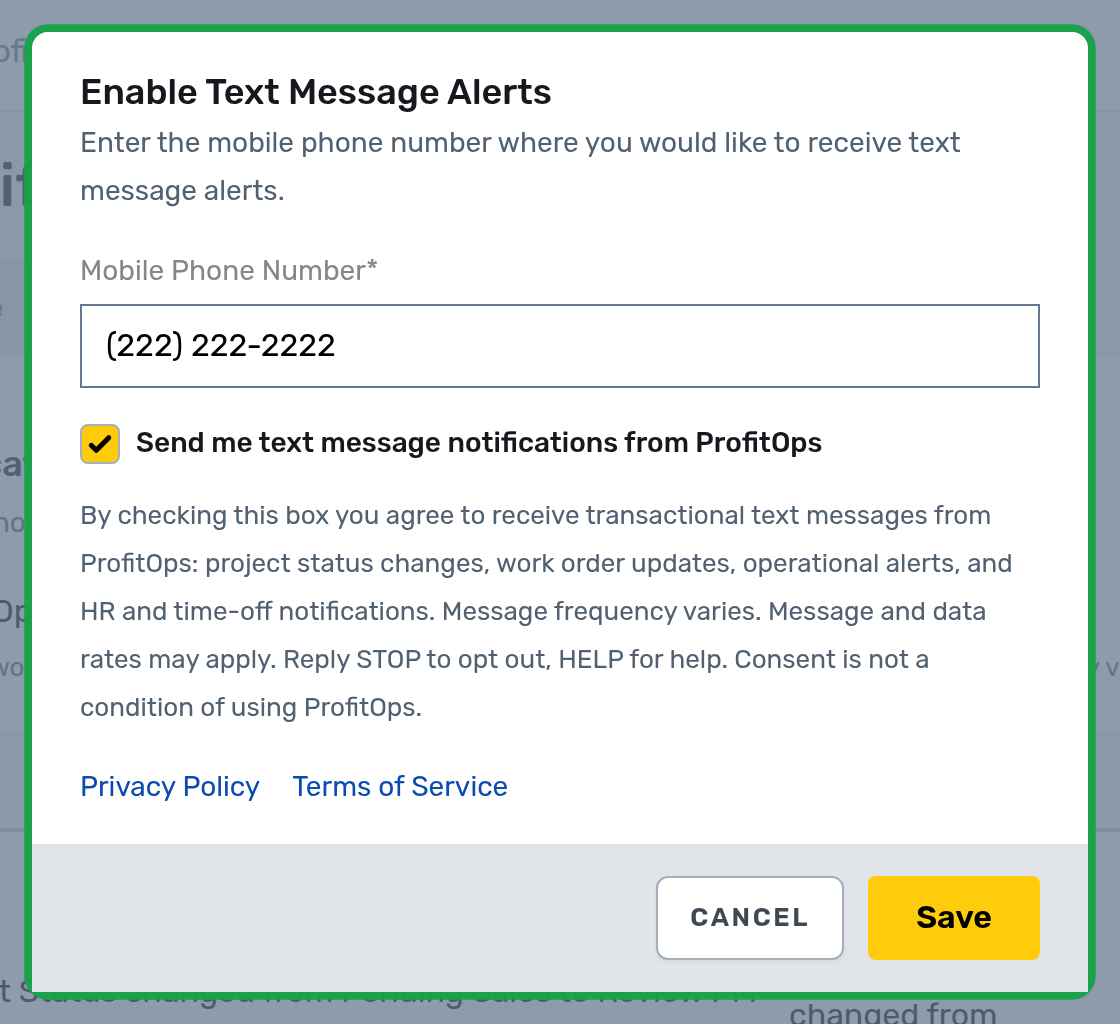
This is the exact text displayed next to the consent checkbox, visible before the user takes any action:
Send me text message notifications from ProfitOps
By checking this box you agree to receive transactional text messages from ProfitOps: project status changes, work order updates, operational alerts, and HR and time-off notifications. Message frequency varies. Message and data rates may apply. Reply STOP to opt out, HELP for help. Consent is not a condition of using ProfitOps.
The opt-in flow, step by step
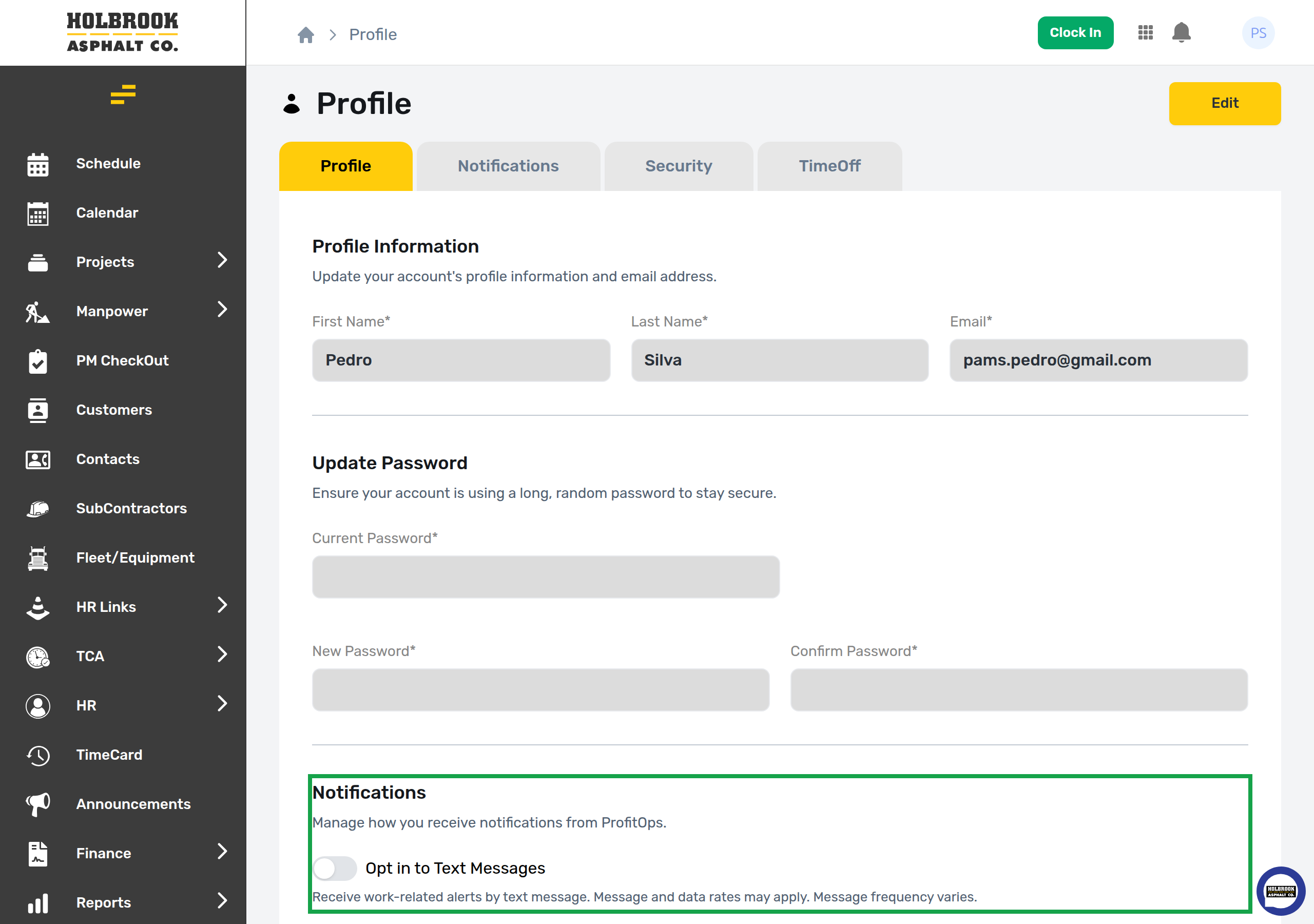
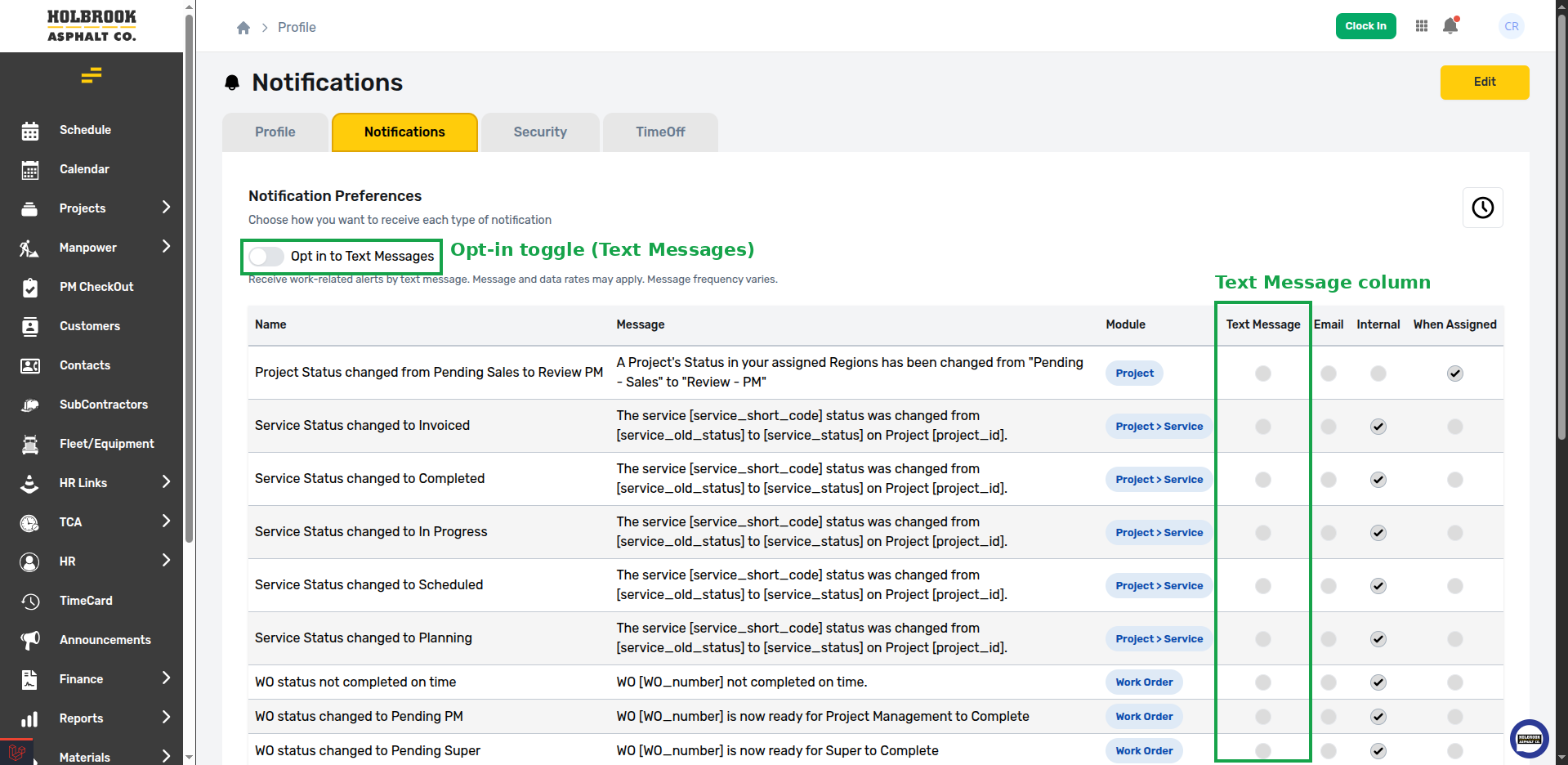
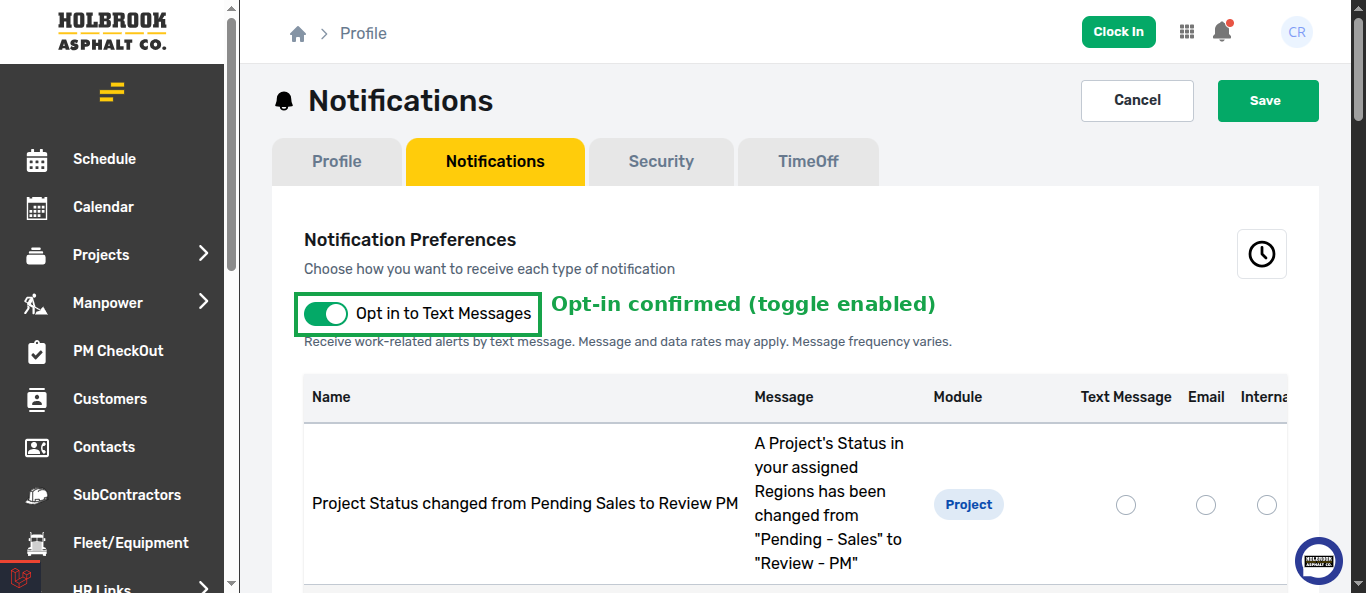
There is one opt-in method and it is web-based. Steps 1 and 2 are alternate entry points — a user may start from either, and both open the same consent dialog shown in step 3.
Default states — no consent control is ever pre-selected
Every consent control in this flow defaults to OFF or UNCHECKED: the opt-in toggle (steps 1 and 2) defaults to off, and the consent checkbox in the dialog (step 3a) defaults to unchecked with the Save button disabled. Any screenshot on this page showing a checked box or an enabled toggle depicts the state after the user has taken a deliberate action, shown to document the complete flow. The screenshots appear in chronological order below.
How users opt out
- Reply STOP to any message.
- Turn the "Opt in to Text Messages" toggle off under Profile or Notifications.
- Deselect individual notification categories in the Text Message column under Notifications.
Reply HELP to any message for help, or contact [email protected].